
callback(). The libraries available to your code have also changed versions.
You can upgrade with Breeze, which is recommended, or upgrade manually. Either way, test each action before you save it.
Prerequisites
- You must have permission to edit workflows in your HubSpot account.
- It’s recommended to create a dedicated test record (for example, a test contact) to test your updated actions. Testing a custom code action applies its changes to the selected record.
Find affected custom code actions
- In your HubSpot account, navigate to Automation > Workflows.
- At the top of the table, add an Action type filter, then select Custom code.

- Each workflow needs to be updated individually. For each workflow in the filtered list, hover over the row and click Edit workflow.

- In the workflow editor, click each custom code action and check the Language dropdown menu. If the action uses Node.js 16 or Node.js 20, it needs to be upgraded.
Save a copy of your current code
Before you change anything, copy the code in each action and save it somewhere outside of HubSpot, such as a text file or your source control. You’ll use this copy to compare changes and to roll back if needed.Upgrade with Breeze (recommended)
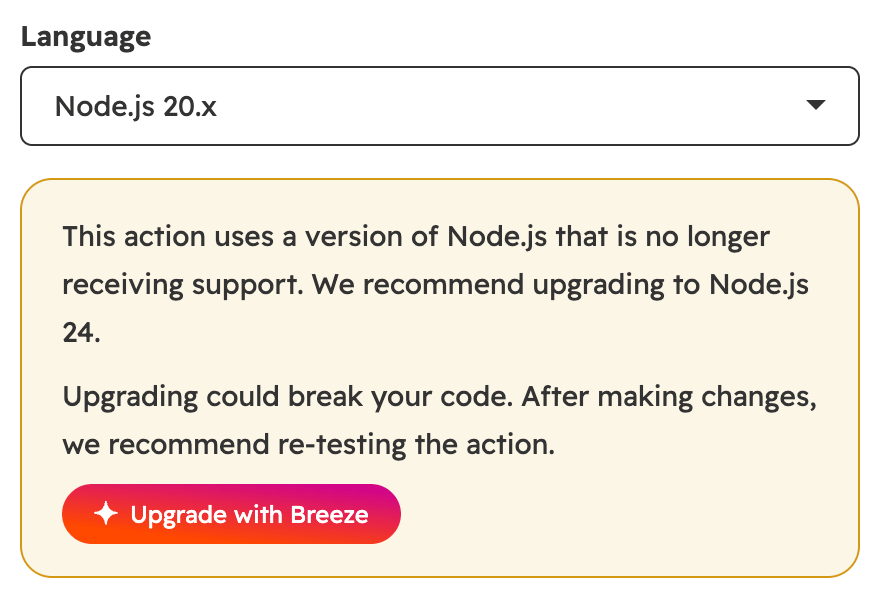
Breeze can update the custom code actions in a workflow for you. This is the recommended way to upgrade, especially if a workflow has several custom code actions.- In the workflow editor, click a custom code action that uses Node.js 16 or 20. A warning appears under the Language dropdown menu.
- Click Upgrade with Breeze. A Breeze chat opens and updates all custom code actions in the workflow to Node.js 24.
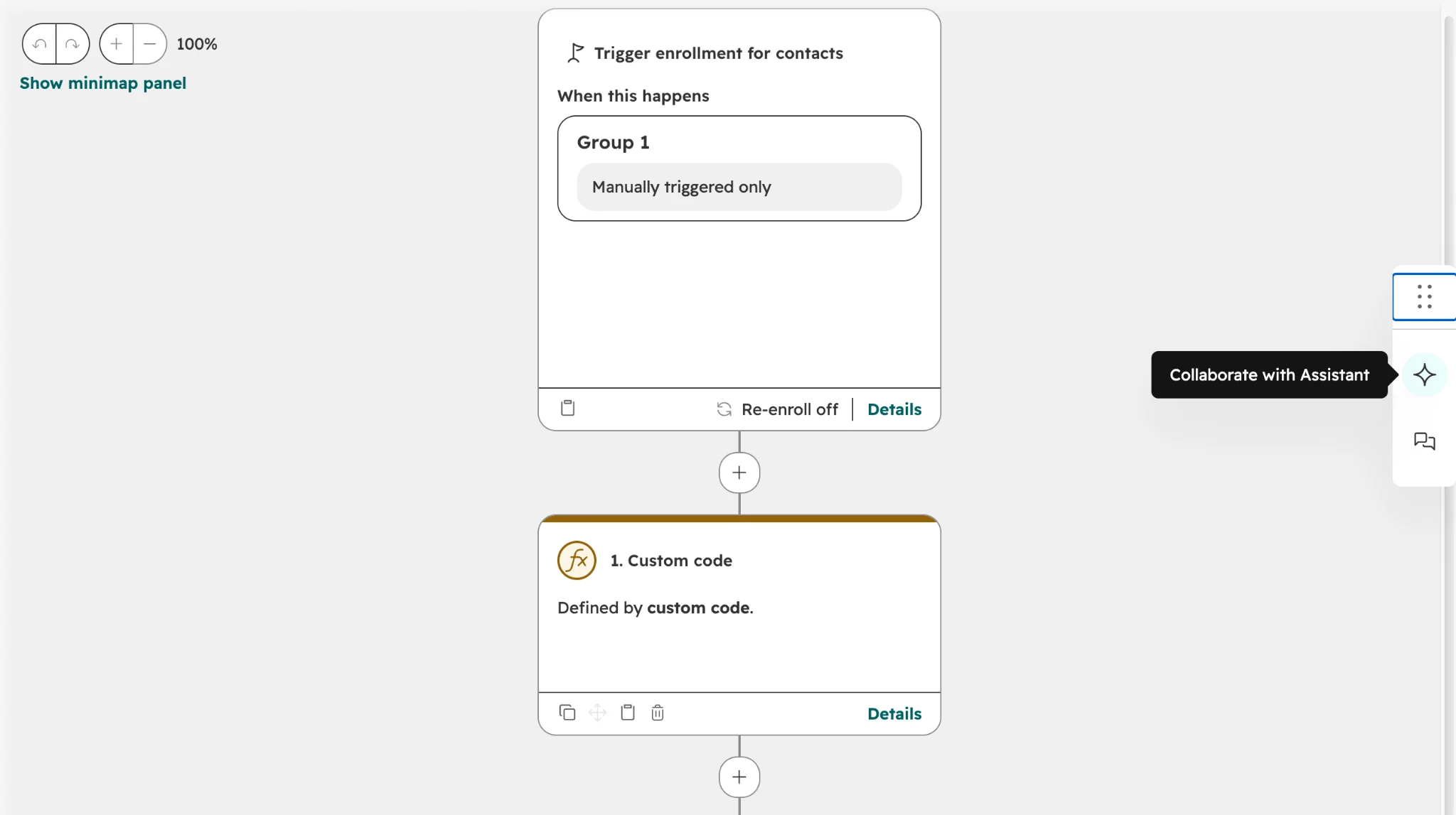
- In the workflow editor, click the Collaborate with Assistant icon in the collaboration panel on the right to open a new Breeze chat.
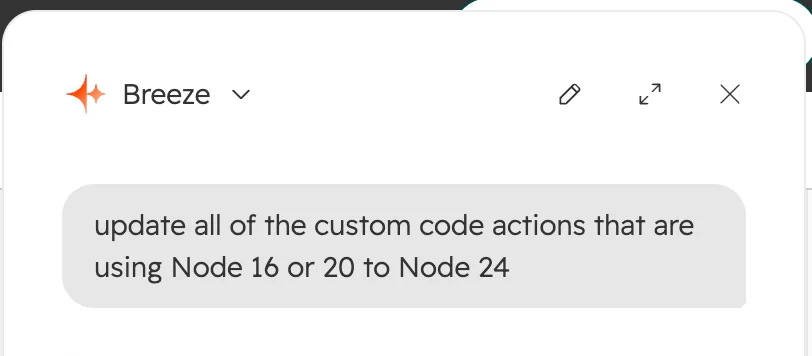
- Ask Breeze to update the actions, for example: Update all of the custom code actions that are using Node 16 or 20 to Node 24.
- Compare the updated code with your saved copy and check that the logic is the same.
- Check that every output in your Data outputs section is still returned.
- Check that any API calls still use methods that exist in the new library versions.
- Test each updated action with a test record.
Upgrade manually
If you prefer to update your code yourself, or you need to fix changes Breeze made, upgrade each action manually. In Node.js 20 and earlier, custom code actions pass their outputs tocallback(). Node.js 24 only supports async handlers, so your exports.main function must return the output object instead. Learn more about this change in the AWS Lambda Node.js handler documentation.
To upgrade an action manually:
- In the workflow editor, click the custom code action.
- Click the Language dropdown menu, then select Node.js 24.x.
- Update your code:
- Remove the
callbackparameter fromexports.main. - Make sure
exports.mainis anasyncfunction. - Replace each
callback({ outputFields: { ... } })call withreturn { outputFields: { ... } };. - Use
awaitfor any asynchronous work, such as API calls, before you return. Code that’s still running afterreturnisn’t guaranteed to finish.
- Remove the
- Check the libraries your code uses against the library changes below.
- Test the action before you save.
Before and after
The following example shows the default sample code for a Node.js 20 custom code action:Node.js 20
Node.js 24
Errors and retries
If your code calls the HubSpot API and you want HubSpot to retry the action after a rate limit error,throw the error in your catch block. With an async handler, a thrown error fails the execution in the same way it did before. Learn more about retries for custom code actions.
Check library and SDK changes
Each Node.js version comes with its own set of libraries, and several have new major versions in Node.js 24. A major version can include breaking changes, so review the release notes for any library your code uses.
Pay particular attention to the following:
- HubSpot API client: Node.js 24 includes version 13 of
@hubspot/api-client. Node.js 20 included version 11, and Node.js 16 included version 10. Review the HubSpot Node.js client release notes for changes to the methods your code calls. - request: the
requestlibrary isn’t available in Node.js 24. Useaxiosor the built-infetch()function instead. - mongoose, redis, and googleapis: each has a new major version in Node.js 24. Review each library’s release notes if your code uses it.
Test each updated action
Test every action after you upgrade it, whether you updated the code yourself or with Breeze. Testing runs only the custom code action, not the rest of the workflow.- In the workflow editor, click the custom code action.
- At the bottom, click Test action to expand the testing section.
- Click the Object dropdown menu, then select your test record.
- Click Test, then confirm in the dialog box.
- Review the results:
- Status: confirm the action succeeded.
- Data outputs: confirm each output has the value you expect.
- Logs: check for errors, such as a missing library or a method that no longer exists.
- When the test passes, click Save.
Roll back an upgrade
If an action that used Node.js 20 doesn’t work after you upgrade it, and you can’t fix it right away, you may be able to switch it back until November 17, 2026:- In the workflow editor, click the custom code action.
- Click the Language dropdown menu, then select Node.js 20.x.
- Replace the code with your saved copy.
- Test the action, then click Save.
Deadline
Upgrade your custom code actions to Node.js 24 before November 17, 2026. HubSpot is ending support for Node.js 20 in two steps:- Starting November 3, 2026, you can’t create new custom code actions that use Node.js 20.
- Starting November 17, 2026, you can’t save changes to existing custom code actions that use Node.js 20, the same way Node.js 16 works today.